
Home / VFR Academy / User guide
VFR Academy · User guide
How to use the vfrmap.eu map - user guide
Every feature of the free map in one place: what is on the screen, how to find an airfield, plan a route with wind and fuel, set the altitude on the profile, rehearse the flight and move the route to your phone. With screenshots.
Applies to: vfrmap.eu. It describes the free map in the browser, as of October 2026. The aviation data comes from OpenAIP and AIP Poland. The map supports planning but does not replace the AIP, NOTAM or AUP/UUP.
What you see on the screen
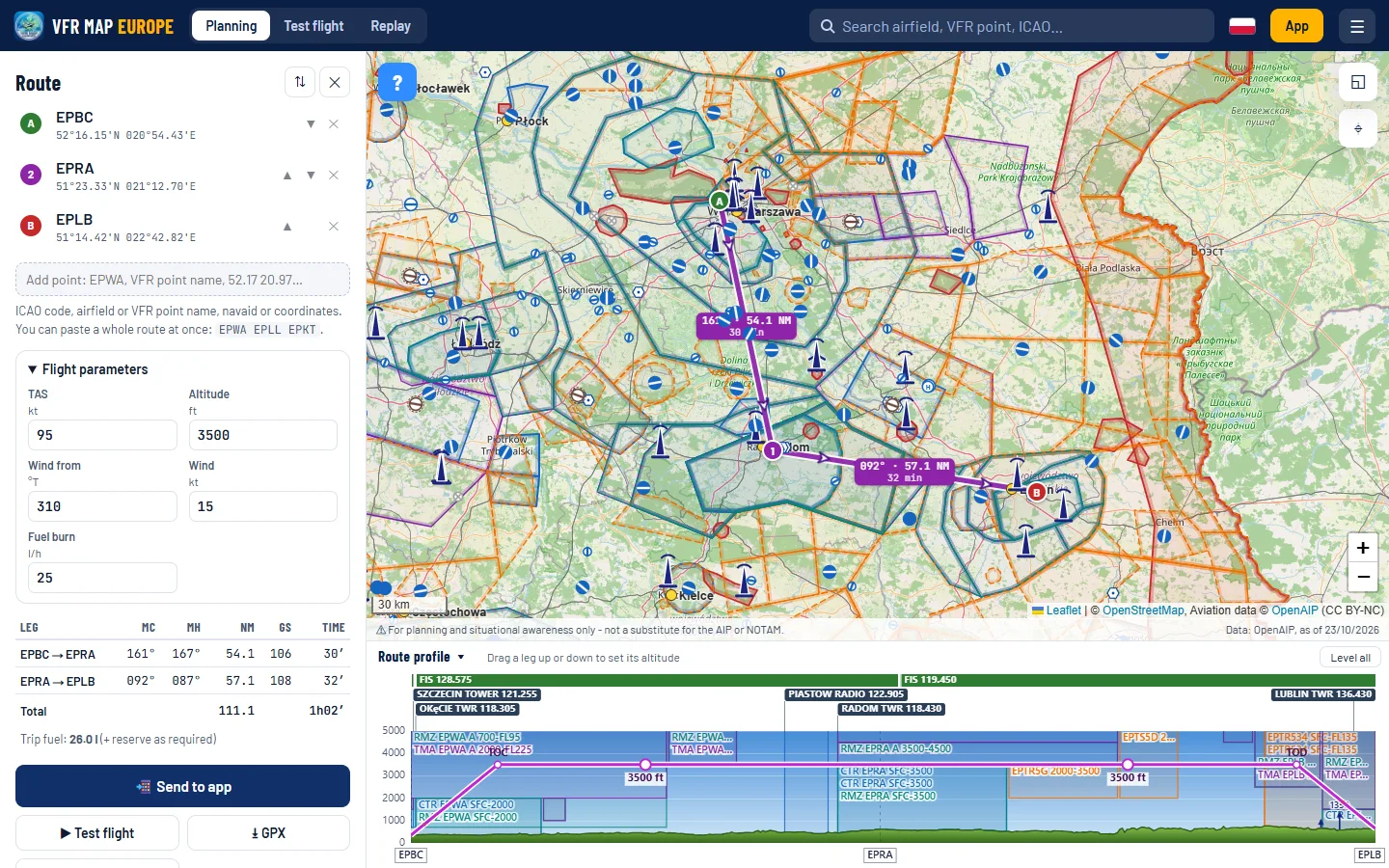
When you open vfrmap.eu you immediately see a map of Poland with airspace, airfields and VFR points. On a computer the screen has three parts: the top bar, the side panel on the left and the map with the route profile below it. Below is a sample route Warszawa-Babice - Radom - Lublin.
 1
2
3
4
5
6
7
8
9
10
11
1
2
3
4
5
6
7
8
9
10
11
- 1 Modes: Planning, Test flight, Replay. Each mode has its own panel on the left.
- 2 Search for airfields, VFR points, navaids and towns.
- 3 The ☰ menu with the subpages: About the map, App, VFR Academy, user guide, FAQ. Next to it the flag that switches the language and the yellow App button.
- 4 The list of route points with the buttons ⇅ (reverse the route) and ✕ (clear the route), and below it the "Add point" field.
- 5 Flight parameters: TAS, altitude, wind and fuel burn.
- 6 Navigation log (nav log) with the course, distance, GS and time of each leg.
- 7 Buttons: Send to app, Test flight, GPX and Link.
- 8 The route on the map with the magnetic course, distance and time at each leg.
- 9 Layers (◱) and below them My position (⌖), which shows on the map where you are.
- 10 Help (?) - shortcuts to the main actions and links to the user guides.
- 11 Route profile: terrain, airspace, frequencies and the planned altitude.
At the bottom of the map there is always a footer reminding you that the map is for planning and situational awareness, and the date of the aviation data. The data is refreshed every AIRAC cycle (28 days).
Search
The "Search airfield, VFR point, ICAO…" field at the top of the screen finds an object on the map and zooms in on it. Type an ICAO code (EPKK), a name (Babice), the name of a VFR point or a beacon. Results appear as you type, and the chosen object opens its card.
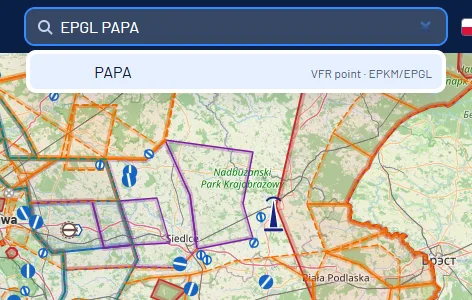
✓ A VFR point always with its airport
Reporting point names repeat: Poland has dozens of points called NOVEMBER or SIERRA. Type the airport first, then the point, e.g. EPWA NOVEMBER. The result shows which airports the point belongs to (in the picture PAPA serves EPKM and EPGL). More in the article VFR reporting points and entering a CTR.
The map, layers and the airfield card
You move the map by dragging it with the mouse and zoom with the mouse wheel or the + and − buttons in the bottom-right corner. When zoomed out, some symbols and labels are hidden to keep the map readable. They appear when you zoom in.
Layers
The ◱ button in the top-right corner of the map opens the layers menu. In it you choose the base map and decide what is visible:
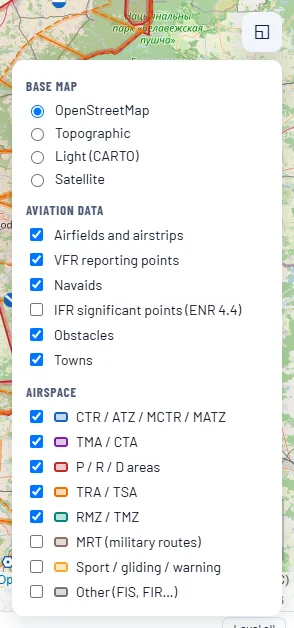
- Base map: OpenStreetMap, topographic (with relief), light CARTO (a calm background for printing) or satellite.
- Aviation data: airfields and airstrips, VFR reporting points, navaids, IFR significant points from AIP ENR 4.4, obstacles and towns.
- Airspace: you switch each group on separately: CTR and ATZ, TMA, P, R and D areas, TRA and TSA, RMZ and TMZ, MRT military routes, sport zones and others. The coloured swatch next to the name is that group's colour on the map.
The boundary of every zone has a label along the line, e.g. TMA 3500-FL95: the lower and upper limit. How to read them is explained in the article Airspace in Poland for VFR pilots.
The airfield card and "What is here?"
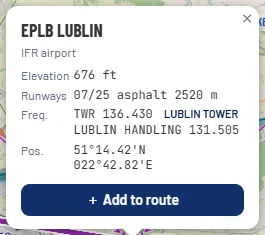
Click the symbol of an airfield, VFR point, beacon or obstacle to see its card. The airfield card gives the type of airfield, the elevation, the runways with surface and length, the frequencies with the station name and the coordinates. The + Add to route button adds the airfield to the end of the route.
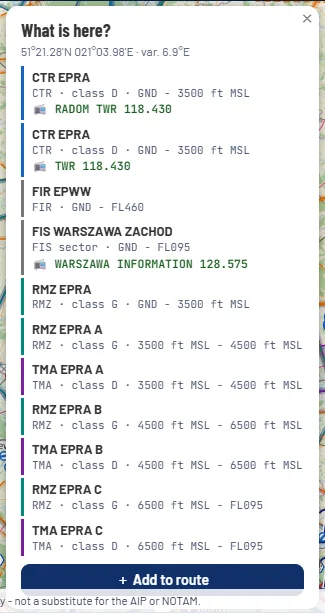
The right mouse button anywhere on the map opens the "What is here?" window: the coordinates, the magnetic variation at that place and the list of all airspace above the point, with vertical limits and frequencies. It is the quickest way to check which zone, for example, your airstrip lies in.
Planning a route step by step
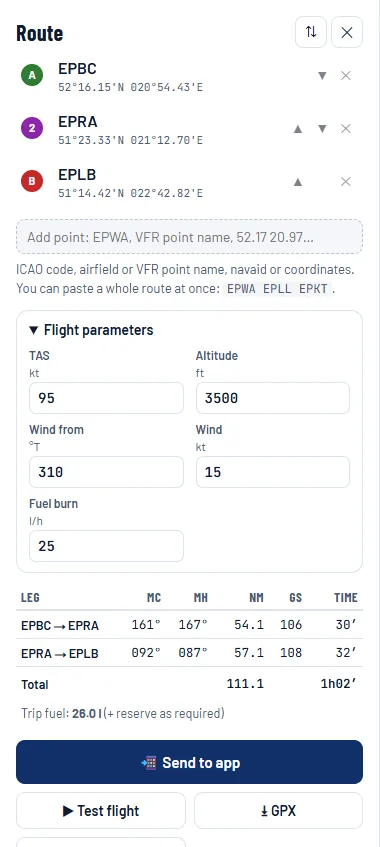
You plan the route in Planning mode (on when you open the site). There are four ways to add points and you can combine them:
- Click the map. Each click adds a point at the end of the route. A click near an airfield, VFR point or beacon snaps the point to that object, so you do not have to aim to the pixel.
- Type a point in the "Add point" field below the list: an ICAO code, the name of an airfield or VFR point, a beacon or coordinates, e.g.
52.17 20.97. - Paste a whole route at once, separating the points with spaces:
EPBC EPRA EPLBorEPWA NOVEMBER EPMO. - Add from the card of an airfield or point with the "+ Add to route" button.
Changing the route
- Move a point: grab its marker on the map (A, 1, 2…, B) and drag it. Dropped near an airfield or VFR point, it snaps to it.
- Insert a point in the middle: click the route line. The new point goes into the nearest leg.
- Order: the ▲ ▼ arrows next to the point in the list, or dragging the rows of the list.
- Remove a point: ✕ next to the point. Clear the route: ✕ next to the "Route" title.
- Reverse the route (return flight): the ⇅ button.
- Point name: click the name in the list and type your own, e.g. the name of a town for a point placed in an empty spot on the map.
The first point is A (green), the last B (red), the intermediate ones have numbers. The route and the parameters are saved in the browser and wait for you on your next visit.
Flight parameters and the navigation log
In the Flight parameters section you enter the data the site uses to compute the navigation log:
| Field | What to enter | Example |
|---|---|---|
| TAS (kt) | the true cruising airspeed from the aircraft flight manual | 95 |
| Altitude (ft) | the planned cruise altitude AMSL; the route profile starts from it | 3500 |
| Wind from (°T) | the direction the wind blows from, relative to geographic north | 310 |
| Wind (kt) | the wind speed at the cruise altitude | 15 |
| Fuel burn (l/h) | the average fuel consumption in the cruise | 25 |
The table below the parameters is the navigation log. Each row is one leg of the route:
| Column | Meaning |
|---|---|
| MC | the leg's magnetic course: the true course from the chart corrected by the variation from the WMM model |
| MH | the magnetic heading with wind correction - the heading you fly by the compass |
| NM | the length of the leg in nautical miles |
| GS | the ground speed allowing for the wind |
| Time | the flight time of the leg |
The Total row has the length and time of the whole route, and below it the trip fuel without reserve - you add the reserve according to the regulations and the aircraft flight manual. You see the same courses, distances and times next to the legs on the map. Where these numbers come from is explained step by step in the article VFR navigation: course, wind and variation. In the Polish version of the map these columns are called KM and KZM.
Route profile
Once the route has at least two points, the Route profile appears below the map: a vertical cross-section along the whole route. From the top you see:
- the FIS strip (green) with the flight information frequency on each part of the route,
- frequency labels of airfields and services along the route, e.g. RADOM TWR 118.430,
- airspace as rectangles with the lower and upper limit, in the colours from the map,
- the planned altitude (purple line) with the climb to the TOC and the descent from the TOD,
- terrain (green) from Open-Meteo elevation data.
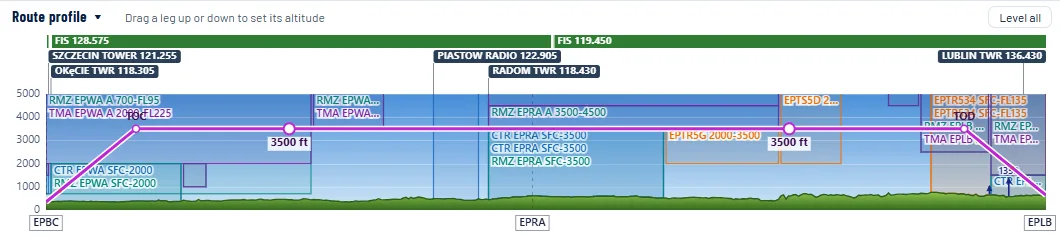
You change a leg's altitude with the mouse: grab the leg on the profile and drag it up or down. This makes it easy to plan a flight below a TMA lower limit on one leg and higher on the next. Level all puts all legs back at the altitude from the flight parameters. Hovering over the profile shows the matching place on the map. The arrow next to the title folds the profile when you need more room for the map.
! Watch out for
- The terrain in the profile is sampled every few hundred metres and does not show every obstacle. Look for masts and turbines on the map (the Obstacles layer), and check the minimum heights in the article Altitude, terrain and obstacles.
- TSAs, TRAs and D areas are always drawn in the profile, whether or not they are active today. Check their activity in the AUP/UUP.
Test flight
Test flight mode (the tab at the top or the "▶ Test flight" button below the plan) flies the planned route with an aircraft on the map, at the speed and wind from the plan: climb, cruise and descent. It is a good way to see before the flight when you enter each zone and who you talk to.
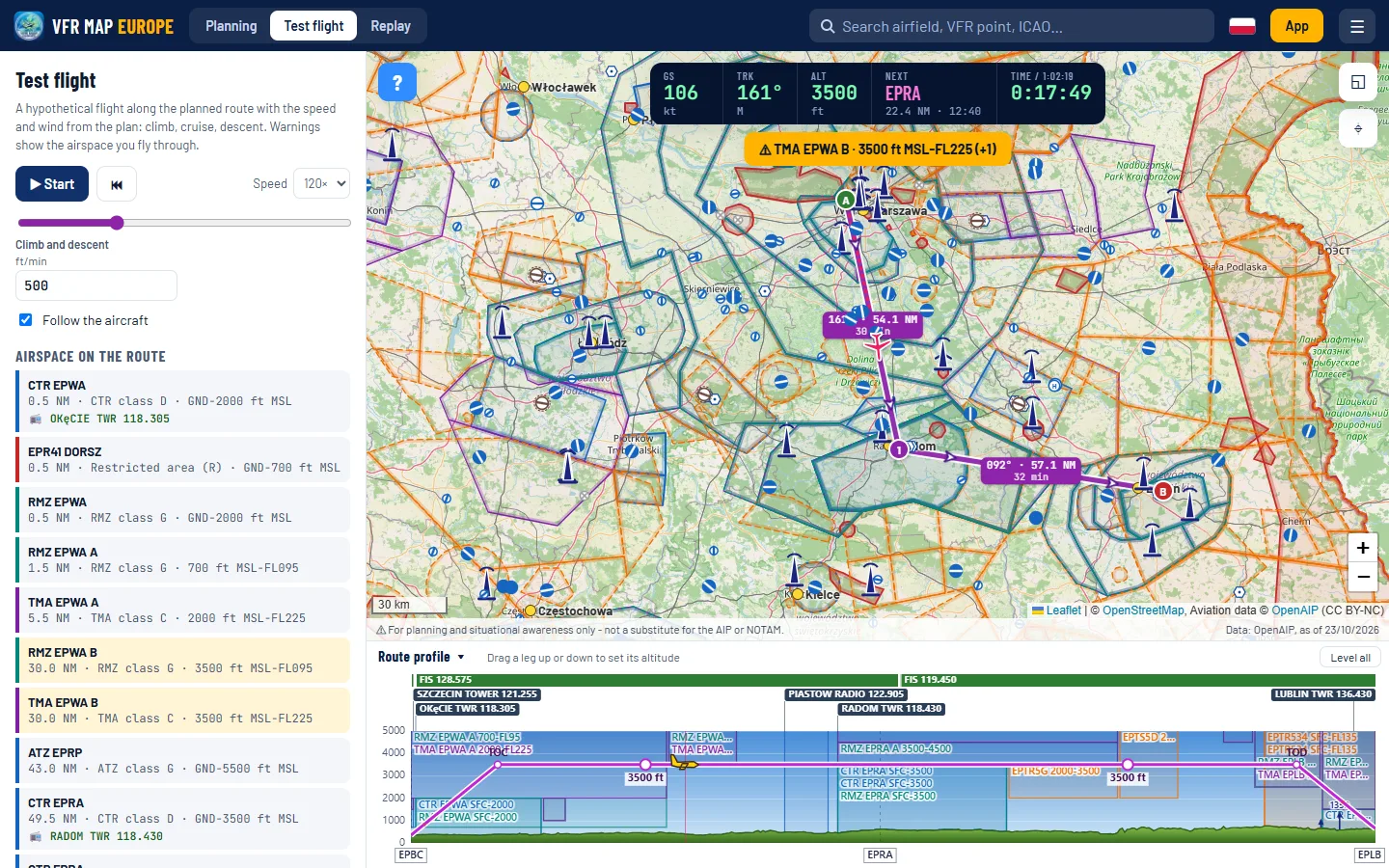
- ▶ Start / pause starts and stops the flight, ⏮ goes back to the start, and the slider moves the aircraft to any place on the route.
- Speed speeds the flight up from 1× to 120×. Climb and descent (ft/min) changes the shape of the profile.
- The data bar on the map: GS, magnetic track (TRK), altitude, the next point with distance and time to it, and the flight time.
- A yellow banner warns about the airspace you are in. The Airspace on the route list shows all zones in the order you fly through them, with the distance from the start, the limits and the frequency.
- Follow the aircraft keeps the aircraft in the middle of the map.
Flight replay
In Replay mode you watch on the map a flight that has already taken place. Click the "Choose or drop a track file" field or drag a file onto it. The site reads GPX, IGC, KML and CSV from the VFR MAP EUROPE app. The file is processed only in the browser and is not sent to a server.
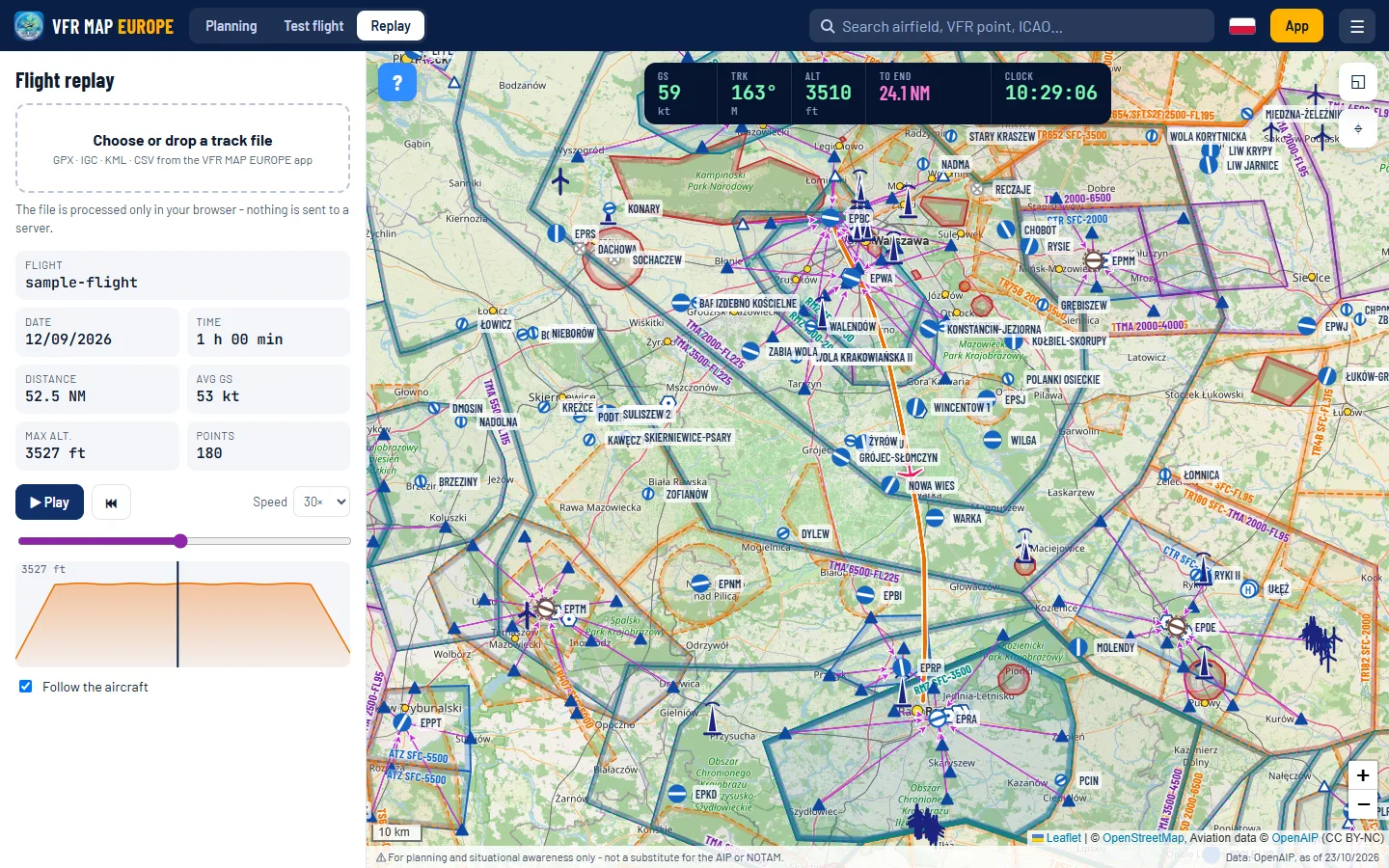
After loading the file you see the statistics (date, flight time, distance, average GS, maximum altitude, number of points), the track on the map and the altitude profile. Play the flight with the ▶ button at the chosen speed, move the slider or click the profile to jump to a given moment. The data bar shows the speed, track, altitude, distance to the end and the clock time, and the yellow banner - the airspace you were in at that moment.
Sending the route: app, GPX, link
Below the navigation log there are four buttons:
- 📲 Send to app shows a QR code and a link with the route. Scan the code with a phone that has the VFR MAP EUROPE app, and the app opens with the route, altitude, speed and wind ready.
- ▶ Test flight switches to test flight mode.
- ⭳ GPX downloads the route as a GPX file that you can load into other navigation devices and programs.
- 🔗 Link copies an address with the route to the clipboard. Whoever opens it will see the same route and parameters on the map - handy when you plan a flight with an instructor or a second pilot.
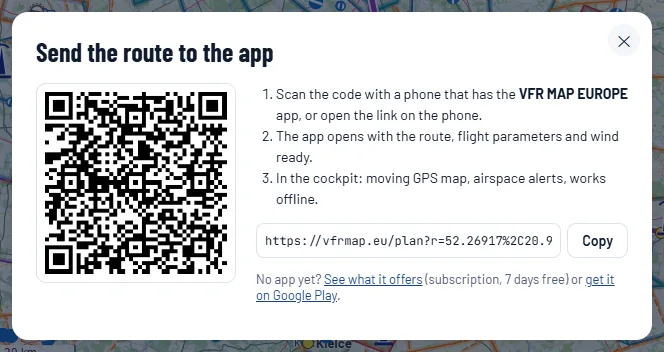
How to use the route on the phone next is described in the VFR MAP EUROPE Android app - user guide.
The map on a phone
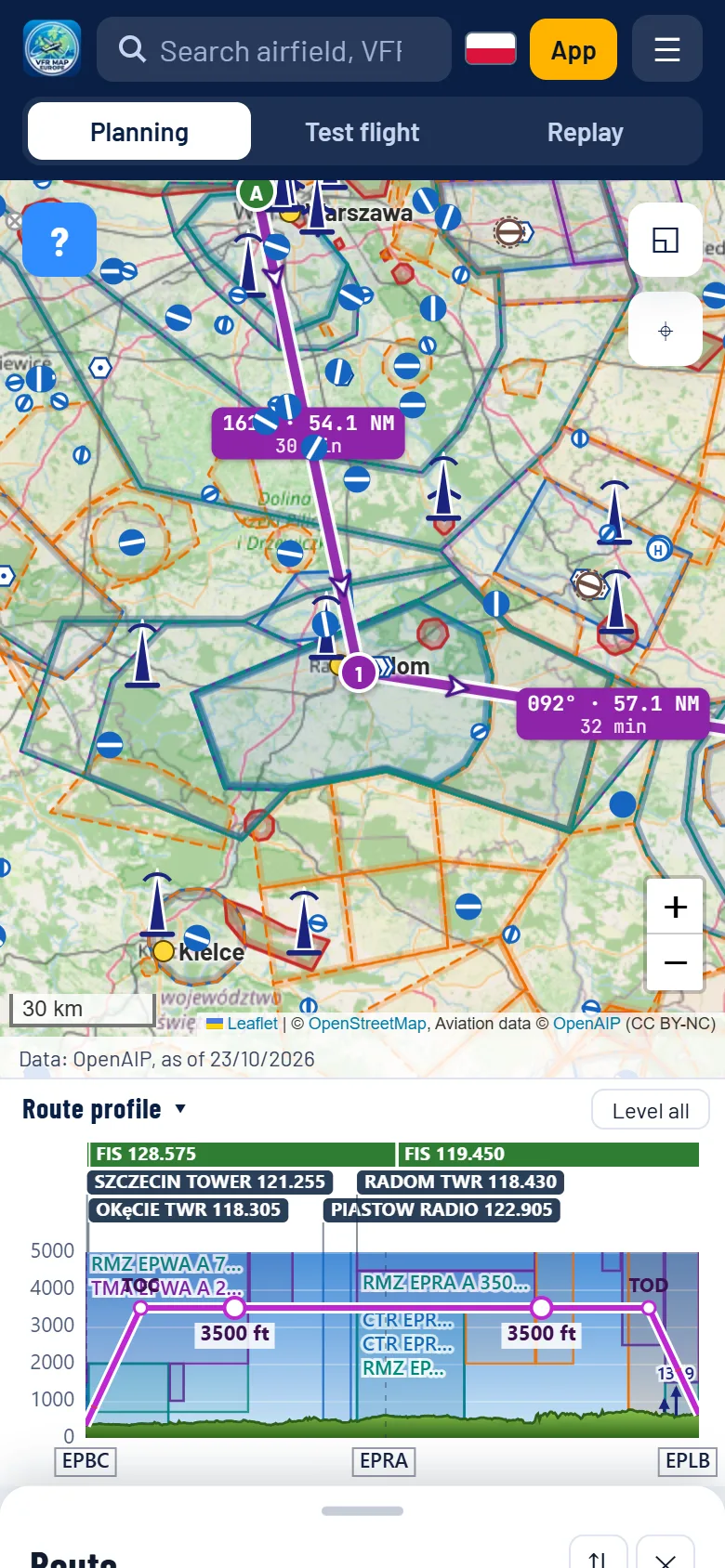
The site also works on phones and tablets. The layout adapts to the screen:
- The modes (Planning, Test flight, Replay) are below the bar with the search.
- The panel with the route and the plan slides up from the bottom. Tap the grey handle to fold or unfold it and uncover the map.
- The route profile is above the folded panel. You can also fold it down to just its title.
- The layers and position buttons are in the top-right corner of the map, and the help button ? in the left one, as on a computer. In Test flight and Replay modes that corner is taken by the data bar, so the help button is hidden then.
The site in a phone browser does not replace the app in the cockpit: it does not track your position in flight, does not warn and does not work without internet. That is what the VFR MAP EUROPE app is for.
The help button on the map
In the top-left corner of the map there is a blue ? button. On your first visits it unfolds for a moment into the label "How to use the map?" and folds back, so that it is easy to notice. The label unfolds to the right, also when you hover over it, and the card opens below the button.
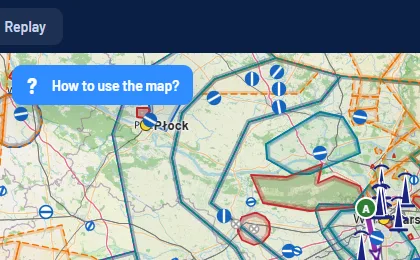
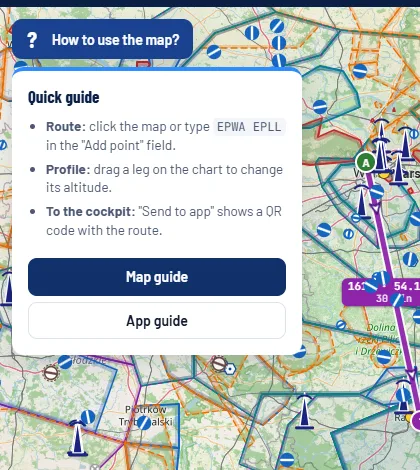
A click opens a card with the three most important tips and buttons to the user guides. You close the card by clicking outside it or with the Esc key. After the first opening the button stops unfolding by itself.
Frequently asked questions
Is the map on vfrmap.eu free and do I need an account?
Yes, the map is free and works without an account or signing in. The route and flight parameters are saved only in your browser, so when you come back to the site you will see your last route.
How do I enter a whole route quickly?
In the "Add point" field in the Route panel paste codes and names separated by spaces, e.g. "EPWA EPLL EPKT". Give a VFR reporting point together with its airport, e.g. "EPGL PAPA", because point names repeat at different airports.
How do I change the altitude on just one leg?
On the "Route profile" chart below the map grab the leg and drag it up or down. The "Level all" button puts all legs back at the altitude from the flight parameters.
Does the flight replay file go to a server?
No. The GPX, IGC, KML or CSV file is read only in your browser and nothing is sent to a server.
How do I move a route from the website to my phone?
Click "Send to app" below the navigation log and scan the QR code with a phone that has the VFR MAP EUROPE app. The app opens with the route, altitude, speed and wind ready. Without the app you can download the route as a GPX file.
Sources
- Aviation data: OpenAIP (CC BY-NC 4.0) with the VFR point links according to the AIP VFR Poland (AD 4.10), significant points from AIP Poland ENR 4.4 - openaip.net, ais.pansa.pl
- Base maps: OpenStreetMap, OpenTopoMap, CARTO, Esri - openstreetmap.org
- Terrain elevation in the route profile: Open-Meteo Elevation API - open-meteo.com
- Magnetic variation: NOAA World Magnetic Model 2025 - ncei.noaa.gov
Educational material. It does not replace flight training, the current AIP Poland, NOTAM or the regulations. The screenshots show the sample route EPBC - EPRA - EPLB and are not information about current zone activity. Spotted a mistake? Write to info@vfrmap.eu.