
Home / VFR Academy / User guide
VFR Academy · User guide
VFR MAP EUROPE Android app - user guide
From installation to landing: how to prepare the app for a flight without internet, add an aircraft, plan a route, read the briefing and what every element of the in-flight screen means. With screenshots from the app.
Applies to: Android app. It describes the VFR MAP EUROPE app for Android (8.0 or newer), version 0.4.26 of October 2026. The app supports the pilot's situational awareness but is not a certified means of navigation.
Installation and first start
- Download the app from Google Play (search for "VFR MAP EUROPE"). Android 8.0 or newer is required.
- Legal disclaimer: read it and tap "I understand and accept". On this screen you also choose the language: Polish or English.
- Subscription: on the "Fly with confidence with VFR MAP EUROPE" screen choose the monthly or yearly plan and tap "Try 7 days free". You pay nothing for 7 days, and cancelling on Google Play during that time means no charge. Details on the App page.
- Location: allow the app access to your location. Without it the map will not show your position and will not start tracking the flight. During the flight the app shows the "Flight in progress" notification and keeps running the flight with the screen off too.
The app needs no account, shows no ads and does not track the user. The subscription is tied to your Google account, so on a new phone with the same account it works straight away.
The screenshots in this guide show the app in Polish: with the English language selected the screens look the same, with English labels.
Preparing for a flight without internet
There is usually no coverage in the air, so before the first flight download the data to the phone. Do it at home, over Wi-Fi. Everything is in Settings (☰ menu → Settings):
| Section in Settings | What to do | What it is for |
|---|---|---|
| Aviation data | "Sync now (Poland)" | airfields, zones, VFR points, beacons and obstacles; they also update by themselves when there is internet access |
| Offline map | "Download the map of Poland" | the base map without coverage; an interrupted download resumes where it stopped |
| Terrain | "Check download size", then "Download terrain for Poland" | the terrain profile and the terrain warning in flight |
Below the map the app shows the age of the aviation data. When it is older than an AIRAC cycle (28 days), you will see the warning "Aeronautical data outdated". Then connect to the internet and sync the data before the flight.
✓ What needs internet
Without internet the map, the route, the airspace alerts, the terrain profile and the logbook work. Internet is needed to download the METAR/TAF weather, the wind forecast and the AUP/UUP. Download them before take-off, while you still have coverage.
The app menu
The ☰ button in the top-left corner of the map (and before the title of every screen) opens the menu with five items:
- Map - the moving aeronautical map, the in-flight screen.
- Planning - route, parameters, briefing, saved routes, PLOG, starting the flight.
- Aircraft - aircraft profiles for the calculations.
- Logbook - flight history, hour totals, export and replay.
- Settings - offline data, units, language, fuel, subscription.
The aircraft profile
In the Aircraft tab tap "Add aircraft" and enter the data from your aircraft's flight manual:
| Field | Example (Cessna 152) | What it is for |
|---|---|---|
| Registration, type / name | SP-KAZ, Cessna 152 | the name in the list and the logbook entry |
| Cruise TAS (kt) | 95 | leg times and GS |
| Fuel burn (l/h) | 22 | trip fuel and the fuel counter in flight |
| Usable fuel (l) | 92 | the fuel margin in the plan and in flight |
| Reserve (min) | 30 | the fuel reserve in the route summary |
| Glide ratio L/D (optional) | 9 | the glide range ring on the map in case of engine failure |
The selected aircraft (marked "✓ Selected for planning and flight") is used for the planning calculations, the fuel counter in flight and the logbook entries. You can have several profiles and switch between them.
The map screen
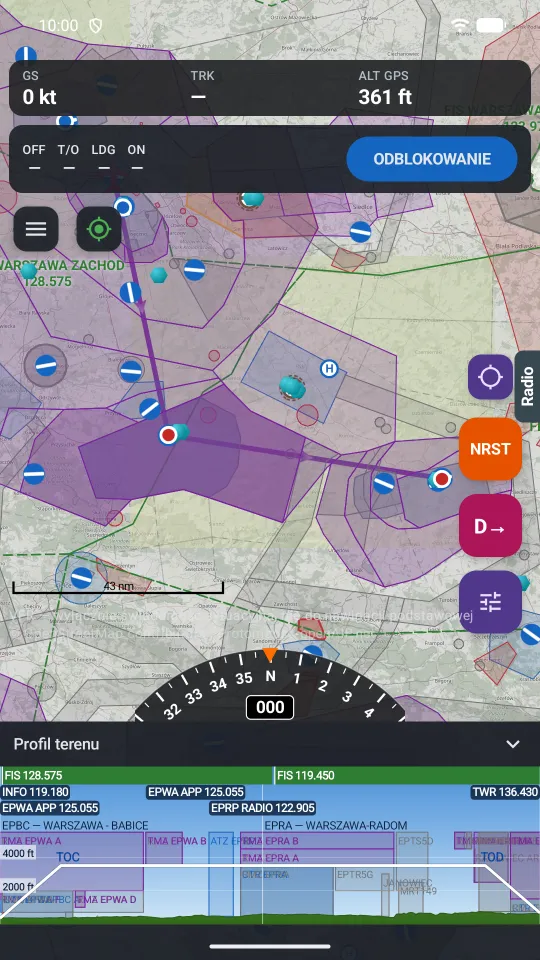
The map screen is the app's main screen and the one in front of you in flight. Below is the map with a planned route, before take-off.
 1
2
3
4
5
6
7
8
9
10
11
12
1
2
3
4
5
6
7
8
9
10
11
12
- 1 Data bar: GS, track over the ground (TRK) and GPS altitude. In flight it extends with the data to the next point.
- 2 Block times: tap OFF BLOCK, then TAKE-OFF, LANDING and ON BLOCK. The times go into the logbook.
- 3 The ☰ menu.
- 4 GPS and data: GPS signal quality, number of satellites, accuracy and the age of the aviation data.
- 5 The route with the direction of flight, FIS sector frequencies and airspace.
- 6 Centre on my position (when you have moved the map with your finger).
- 7 Radio - the panel of frequencies here and now and along the whole route.
- 8 NRST - the nearest airfields.
- 9 D→ - Direct-To.
- 10 Map tools: a tap unfolds the buttons for orientation (track up or north up), layers, night mode, adding points by touch and position tracking.
- 11 Compass with the current track, and in flight also the course to the next point.
- 12 Terrain profile along the route, with frequencies, zones, TOC and TOD. The arrow folds and unfolds it.
Map tools
- Orientation: direction of flight at the top (track up) or north up. The arrow on the button always points north.
- Layers: airfields, beacons, VFR points, ENR 4.4 IFR points, obstacles, towns, METAR/TAF weather, the aeronautical chart style, terrain shading and each airspace group separately. Here you also see when the AUP/UUP was downloaded.
- Night mode: a red colour scheme that does not dazzle you in the cockpit after dark.
- Adding points by touch: when on, every tap on the map adds a route point. The button disappears in flight, so that you do not change the route by accident.
Tapping a symbol on the map opens its card: an airfield (described below), an obstacle with its height above the ground and top above sea level, or a VFR point.
Route planning
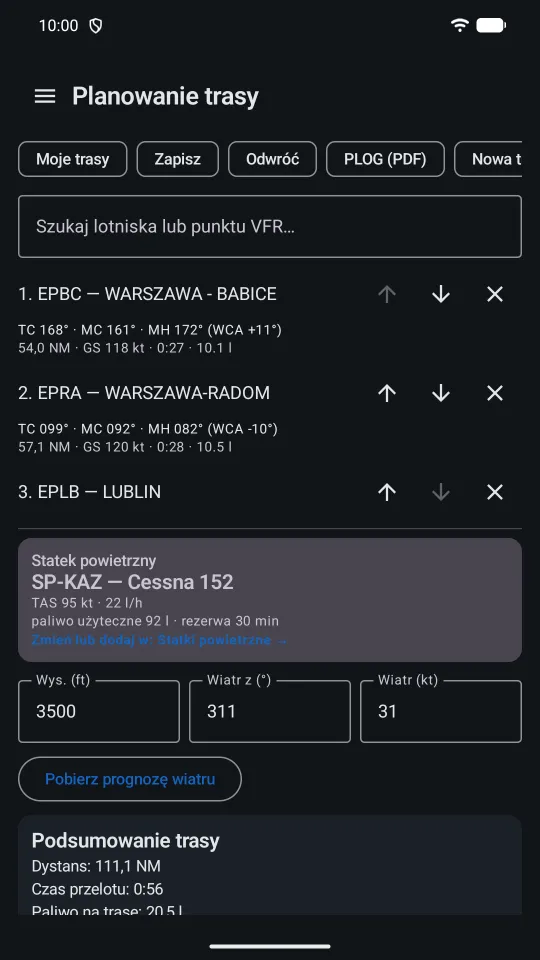
The Planning tab is the list of route points with the calculations for each leg.
Adding points
- type in the search field an airfield, a VFR point with its airport (
EPGL PAPA), coordinates or a whole route at once (EPWA NOVEMBER EPMO), - on the map turn on the "Add route points by tapping the map" tool and tap the map - the points snap to airfields and VFR points,
- on an airfield card tap "Add to route",
- load a route from vfrmap.eu with a QR code ("Send to app").
You change the order with the ↑ ↓ arrows and remove a point with the ✕ button. On the map you change the route by dragging the legs with your finger.
What the numbers at a leg mean
| Abbreviation | Meaning | Example from fig. 2 |
|---|---|---|
| TC | true course (from geographic north) | 168° |
| MC | magnetic course (TC corrected by the variation from the WMM model) | 161° |
| MH (WCA) | magnetic heading with wind correction; the correction angle in brackets | 172° (+11°) |
| NM, GS | leg length and ground speed | 54.0 NM, 118 kt |
| time, l | leg flight time and fuel used | 0:27, 10.1 l |
Below the list are the selected aircraft and the fields Alt. (ft), Wind from (°) and Wind (kt). The Fetch wind forecast button fills in the wind from the Open-Meteo forecast for the cruise altitude.
The buttons at the top of the screen
- My routes - saved routes; Save - saves the current route under a name (also as a new one).
- Reverse - the return route; New route - an empty list.
- PLOG (PDF) - the navigation log to print or clip to your kneeboard.
- NOTAM - links to the NOTAM briefing (EAD Basic and the PANSA NOTAM office). The app does not download NOTAM itself.
Briefing: fuel, daylight, weather, zones
Further down the Planning tab there are cards that together make a short pre-flight briefing:
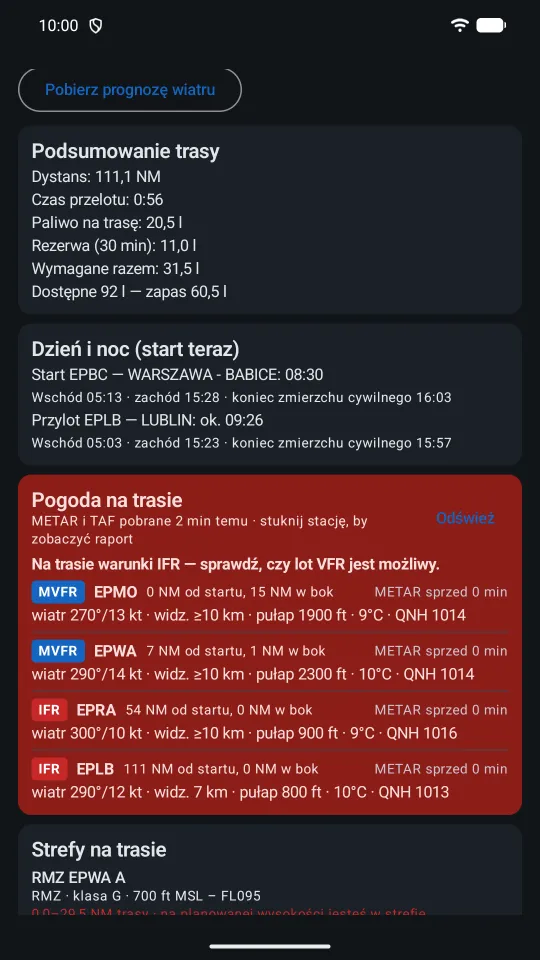
- Route summary: distance, en-route time, trip fuel, reserve, total fuel required and the margin against the usable fuel. When fuel is short you will see "SHORT".
- Day and night: the departure and arrival times with sunrise, sunset and the end of civil twilight at both airfields. The app warns you when the arrival falls after twilight, i.e. at night under the regulations.
- Weather along the route: METAR stations in a 15 NM corridor around the route, with the flight category (VFR, MVFR, IFR), wind, visibility, ceiling and QNH. Tap a station to see the full METAR and TAF. A red card is a sign that there are conditions below VFR on the route.
- Airspace on route: every airspace with the leg of the route it lies on, and an assessment at the planned altitude: "at planned altitude you are inside" or "clear of the zone vertically". TSAs and TRAs have information from the AUP/UUP: "inactive today per AUP/UUP" or the booking times in UTC.
How to read the AUP/UUP is explained in the article TSA and TRA: checking the AUP/UUP before VFR.
The airfield card
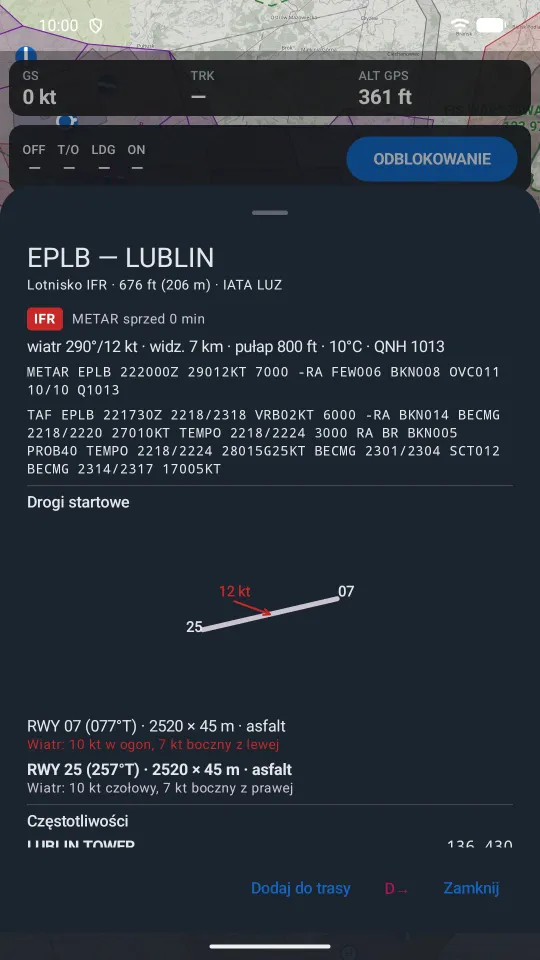
Tap an airfield on the map or in the search results. The card shows:
- the type of airfield, the elevation and the IATA code,
- the weather category and the decoded METAR (wind, visibility, ceiling, temperature, QNH) as well as the raw METAR and TAF; when the airfield has no METAR, the weather from the nearest station,
- a runway diagram with a wind arrow,
- for each runway the direction, dimensions, surface and wind components: head or tail and cross from the left or right; a runway with a tailwind is shown in red,
- frequencies with the station names.
At the bottom of the card: Add to route, D→ (fly straight to this airfield) and Close.
In flight
Before take-off go to the Planning tab and tap Start route. The app starts tracking the flight, recording the GPS track and the times over the points, and the notification bar shows "Flight in progress" with the next point and ETA. Tracking continues with the screen off too.
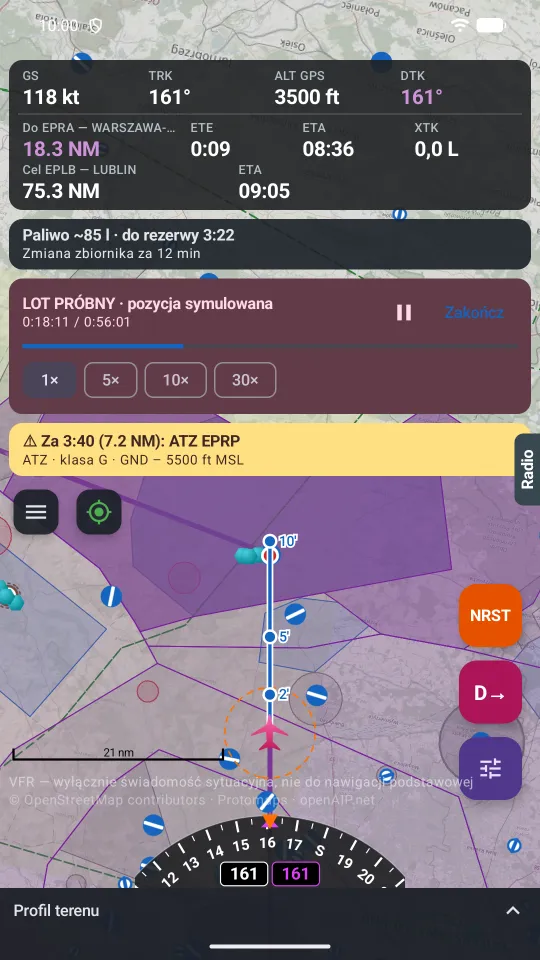
The data bar
| Field | Meaning |
|---|---|
| GS, TRK, GPS ALT | speed and track over the ground, GPS altitude |
| DTK | the desired track of the leg (purple) |
| To … | distance to the next point |
| ETE, ETA | time to the point and the time of arrival over it |
| XTK | cross-track deviation from the route line, L or R |
| Destination | distance and ETA to the destination airfield |
The app detects passing a route point by itself and switches to the next leg.
Warnings
- Airspace: a yellow banner about 5 minutes before a zone along the route, with the time, distance, class and limits, e.g. "In 3:40 (7.2 NM): ATZ EPRP". A voice message ("Caution, … in 4 minutes") and vibration. Inside the zone the banner changes to "Inside".
- Terrain: "TERRAIN NEARBY", and with a small margin "TERRAIN! PULL UP" with the terrain elevation ahead of the aircraft and a voice. Requires the terrain data to be downloaded.
- Fuel: a card with the estimated fuel and the time to the reserve, and a tank switch reminder (you set the interval in Settings). At the reserve: "FUEL RESERVE" and a voice.
- Twilight: a warning when the arrival falls after civil twilight.
On the map
- A track vector ahead of the aircraft with marks for 2, 5 and 10 minutes of flight: you see straight away where you will be.
- A glide range ring (orange, dashed) when you give the glide ratio L/D in the aircraft profile.
- Compass with the current track (white) and the desired one (purple).
After landing tap End flight in Planning. The flight is saved in the logbook.
! Watch out for
- The app supports situational awareness. You navigate with a chart, a compass and a watch, and the app is an additional source of information.
- The GPS altitude differs from the reading of an altimeter set to QNH. Use the altimeter for separation from zones and terrain.
- No warning does not mean a zone is inactive. Listen to FIS and check NOTAM and the AUP/UUP.
NRST, Direct-To and Radio
These three functions are always on top, on the right side of the map, and never hide in the tools.
- NRST (orange) - a list of the nearest airfields with magnetic course, distance, flight time at the current GS, frequency, longest runway and elevation. One tap on an airfield sets a flight straight to it (Direct-To).
- D→ (Direct-To, pink) - a flight straight from your present position to the chosen point: an airfield from the nearest list or a point of your route ("Flight route (rejoin route)"). The logbook records the flight after the route change.
- Radio - a tab on the right edge of the screen. It slides out a panel with the frequencies HERE AND NOW (the zones and FIS sector above you) and ALONG THE ROUTE, in flight order. Check the frequencies against the current AIP and NOTAM.
Test flight on the ground
In Planning tap Test flight (simulation). The aircraft flies the route with a simulated position, and the map behaves as in a real flight: data bar, zone alerts with voice, fuel, track vector. At the top of the screen there is the "TEST FLIGHT · simulated position" card with the time, pause, the Stop button and the speed 1×, 5×, 10×, 30× (fig. 5).
Rehearse a test flight before every new route: you will see where the warnings appear and when to change frequency. A test flight does not go into the logbook.
Logbook and replay
The Logbook tab collects all flights made with the app:
- Totals at the top: number of flights, flight time, block time and number of landings.
- Carrying passengers: the number of landings in the last 90 days and whether you meet the 3 landings requirement.
- A flight entry: the route, the times over the points and the leg times, the block times, the aircraft, the number of landings and remarks. You edit or delete an entry, and add a flight made without the app by hand ("Add flight").
- ▶ Replay flight on the map - the GPS track on the map with a time slider, speed-up and an altitude profile.
- Export: the whole logbook to CSV, and a single flight to GPX. You can also open the CSV or GPX file on vfrmap.eu in Replay mode, on a big screen.
Settings and subscription
- Aviation data, Offline map, Terrain - downloading and updating the data (described above).
- Fuel in flight - a tank switch reminder every chosen number of minutes, or off.
- Units - nautical (NM, kt) or metric (km, km/h). Language - Polish or English.
- Subscription - the subscription state and a link to managing it on Google Play. You cancel it on Google Play → Payments & subscriptions → Subscriptions.
- Legal disclaimer - shows it again. About - the version and the data sources.
If the app closes with an error, Settings will show "Send report". The report contains only a technical description of the error, without your routes or position.
Frequently asked questions
What should I do before the first flight with the app?
With internet access, preferably over Wi-Fi: in Settings sync the aviation data, download the offline map and terrain data, add your aircraft in the Aircraft tab and rehearse the route with a test flight on the ground.
Does the app work in the air without internet?
Yes. Once the aviation data, map and terrain are downloaded, the moving map, airspace alerts and terrain profile work without coverage. Internet is needed for the weather, the wind forecast and the AUP/UUP. The subscription works offline for up to 7 days after the last check.
How do I load a route planned on vfrmap.eu?
On the website click "Send to app" and scan the QR code with the phone, or open the route link on the phone. The app loads the points, altitude, speed and wind and shows the message "Route loaded from vfrmap.eu".
How does NRST differ from D→?
NRST shows a list of the nearest airfields with course, distance and frequency. D→ (Direct-To) sets a flight straight from your present position to the chosen point: an airfield from the nearest list or a route point, to get back on the route.
Is a test flight saved in the flight logbook?
No. A test flight is a flight along the route with a simulated position, on the ground, to rehearse the navigation and the warnings. It does not go into the flight logbook.
Sources
- Aviation data: OpenAIP (CC BY-NC 4.0), AIP VFR Poland (AD 4.10), AIP Poland ENR 4.4 - openaip.net, ais.pansa.pl
- TSA and TRA activity: the AUP/UUP of AMC Poland (PANSA) - airspace.pansa.pl
- METAR and TAF weather: aviationweather.gov; wind forecast and terrain elevation: Open-Meteo - aviationweather.gov, open-meteo.com
- Map: © OpenStreetMap contributors; magnetic variation: NOAA World Magnetic Model 2025 - openstreetmap.org
Educational material. It does not replace flight training, the current AIP Poland, NOTAM or the regulations. The screenshots show a sample route and weather and are not information about current conditions. Spotted a mistake? Write to info@vfrmap.eu.